Deep research on your Mac: how web search works in Elvean

A customer recently wrote to us with a good question: they had switched on web search, added a couple of API keys, and couldn’t tell what had actually changed. Fair enough. “Web search” sounds like one feature, but in an AI client it’s a small pipeline with several moving parts, and the parts you choose decide whether you get a shallow summary or something close to the deep research modes in ChatGPT, Gemini and Perplexity.
This post explains how that pipeline works in Elvean, what separates one search provider from another, and how to set it up for research-grade answers — with any model, including ones running on your Mac.
What “deep research” actually is
Strip away the branding and every deep research product does the same thing. The model is given a search tool and permission to use it repeatedly. It searches, reads what comes back, decides what it still doesn’t know, searches again, opens the pages that look useful, and only writes the final answer once it’s satisfied it has enough. The difference between a quick answer and a research report is mostly how many times that loop runs and how much of each page the model actually gets to read.
Elvean works the same way. There’s no separate “research mode” — it’s the normal tool loop, and you control how far it goes.
How web search works in Elvean
Web search is exposed to the model as a tool, alongside everything else it can call. When you send a prompt, the model decides for itself whether it can answer right away or needs more information first. If it needs more, it calls the search tool with a query it writes, reads the results, and decides again.
Often that’s a multi-step process. The model runs the search tool in a loop — refining queries, opening specific pages — until it decides it has enough to give you the final response:
 you ask ──► model ──► enough to answer?
               ▲              │
               │         no   │   yes
               │              ▼     └──────► final answer, with sources
               │      search / read a page
               └──────────── results
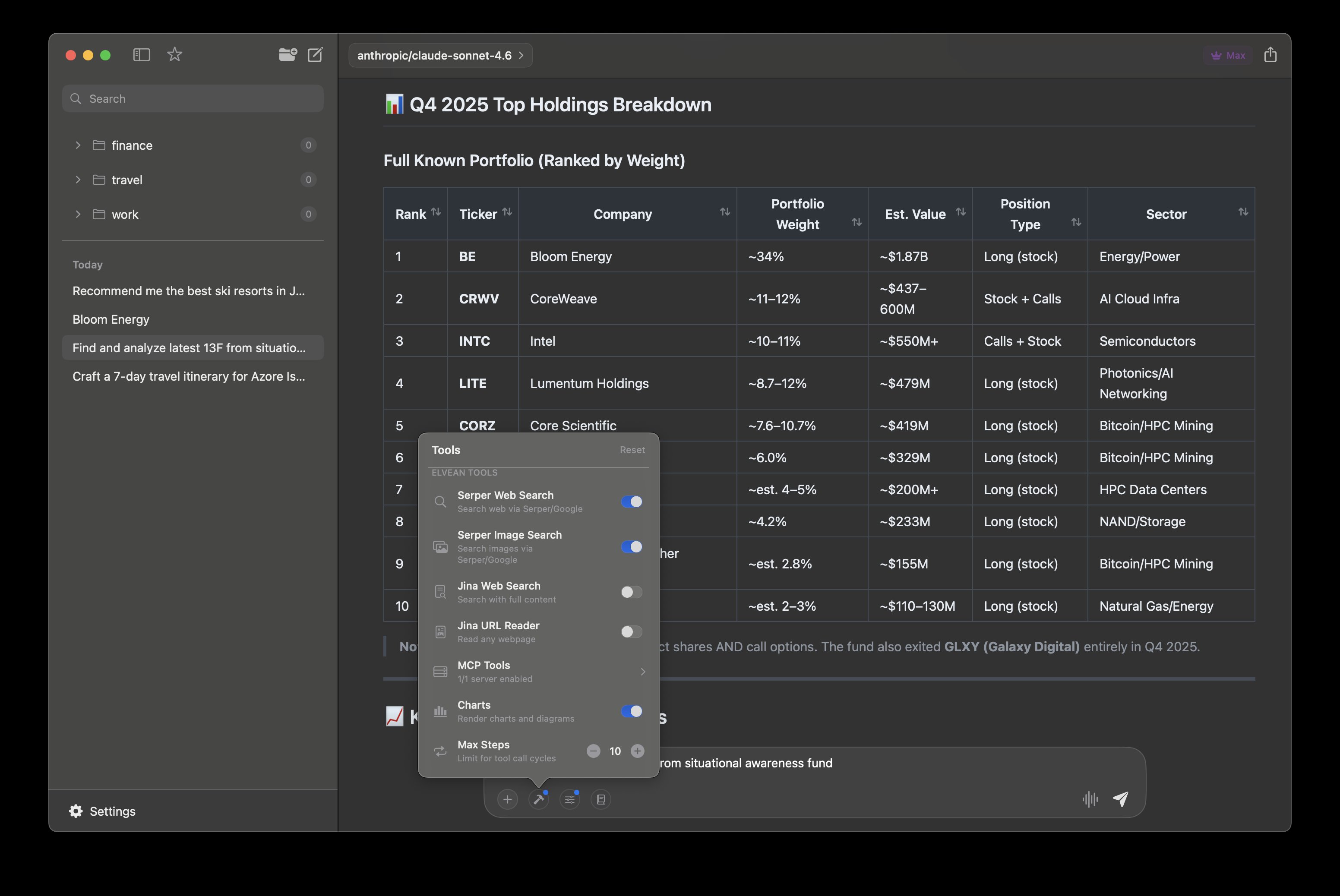
Each pass through that loop is one step. Elvean allows up to 10 steps per answer by default; you can raise or lower the limit for a conversation with Max Steps in the tools popover in the input panel. A quick factual question rarely needs more than one or two searches. A comparison across a dozen products might use all ten.
Snippets versus full pages
This is the part that matters most, and the one that explains why search quality varies so much between apps.
Most search APIs return a list of links with a short snippet for each — a sentence or two pulled from the page. That’s enough for the model to know a page exists and roughly what it’s about, but not enough to answer a detailed question from. A model working only from snippets tends to give answers that are right in outline and vague in the details.
The biggest difference between search providers is whether they stop at links and snippets, or also fetch the actual content of the pages, converted to clean Markdown (see Jina for an example). Full page content gives the model far more detail to work with, enriches its context, and makes the answers noticeably more accurate.
Elvean covers this in two ways:
- Its own URL fetch tool. Elvean has a built-in page reader that works in tandem with web search: after a search, the model can open the most promising results and read their main text with the menus, ads and boilerplate stripped out. You can review exactly what it searched for and what came back in the tool calls section of each response.
- Search providers that return full content. A dedicated provider that fetches pages as part of the search gives you the best quality, because the model gets the full text of the top results in a single step instead of choosing which pages to open one at a time.
Choosing a search provider
Here’s what Elvean supports today, and what each one gives the model:
| Provider | API key | What the model gets |
|---|---|---|
| DuckDuckGo | Not needed | Titles, snippets and links. Free, but may be rate-limited under heavy use. |
| Brave | Yes | Titles, snippets and links, from Brave’s own independent index. |
| Yes | Titles, snippets and links from Google. | |
| Serper | Yes | Google results through Serper’s API: titles, snippets and links. |
| Exa | Yes | Pages matched by meaning rather than keywords, with relevant excerpts and publish dates. |
| Parallel | Yes | Ranked pages with excerpts chosen for the question, built for AI agents. |
| Jina | Yes | Full content of the top results, plus a reader for any URL. |
| OpenRouter web search | Your OpenRouter key | Search handled by OpenRouter itself, billed as extra OpenRouter credits. |
A few practical notes:
DuckDuckGo is the fallback, not the goal. It needs no setup, which makes it the easiest way to try web search, but it’s a public endpoint and it rate-limits automated use. If searches start failing or coming back thin, that’s the signal to add a provider with a key.
If you use OpenRouter, you already have an option. OpenRouter can run the web search on its side; you can switch it on from the tools popover in Elvean’s input panel when you’re talking to an OpenRouter model. There’s no extra key to set up, but OpenRouter charges extra credits for each search.
For research, prefer full content. Brave, Google and Serper are fast and good at finding the right pages, and they pair well with Elvean’s URL fetch tool. Jina returns full page content in the search step itself, and Exa and Parallel return excerpts picked for your question rather than generic snippets. If accuracy on detailed questions matters more than speed, these are the ones to try first.
You set keys up once in Settings → Web Search, and then choose which search tools are on for a conversation from the tools popover.
Setting it up for deep research
- Add a provider. Open Settings → Web Search, pick a provider and paste its key. If you only want to try it, skip this step and DuckDuckGo will be used.
- Turn on search and page reading. In the tools popover, switch on your search provider and the URL reader, so the model can open pages and not just skim results.
- Give it room. For a real research task, raise Max Steps above the default of 10. For quick lookups, leave it alone.
- Pick a model that’s good with tools. Research quality depends heavily on how well the model plans its searches and knows when to stop. Larger cloud models are generally better at this; smaller local models can do it too, more slowly and with less depth.
- Ask for the shape you want. Tell it what to compare, how many sources you expect, and how to present the result.
A prompt we use for this kind of work:
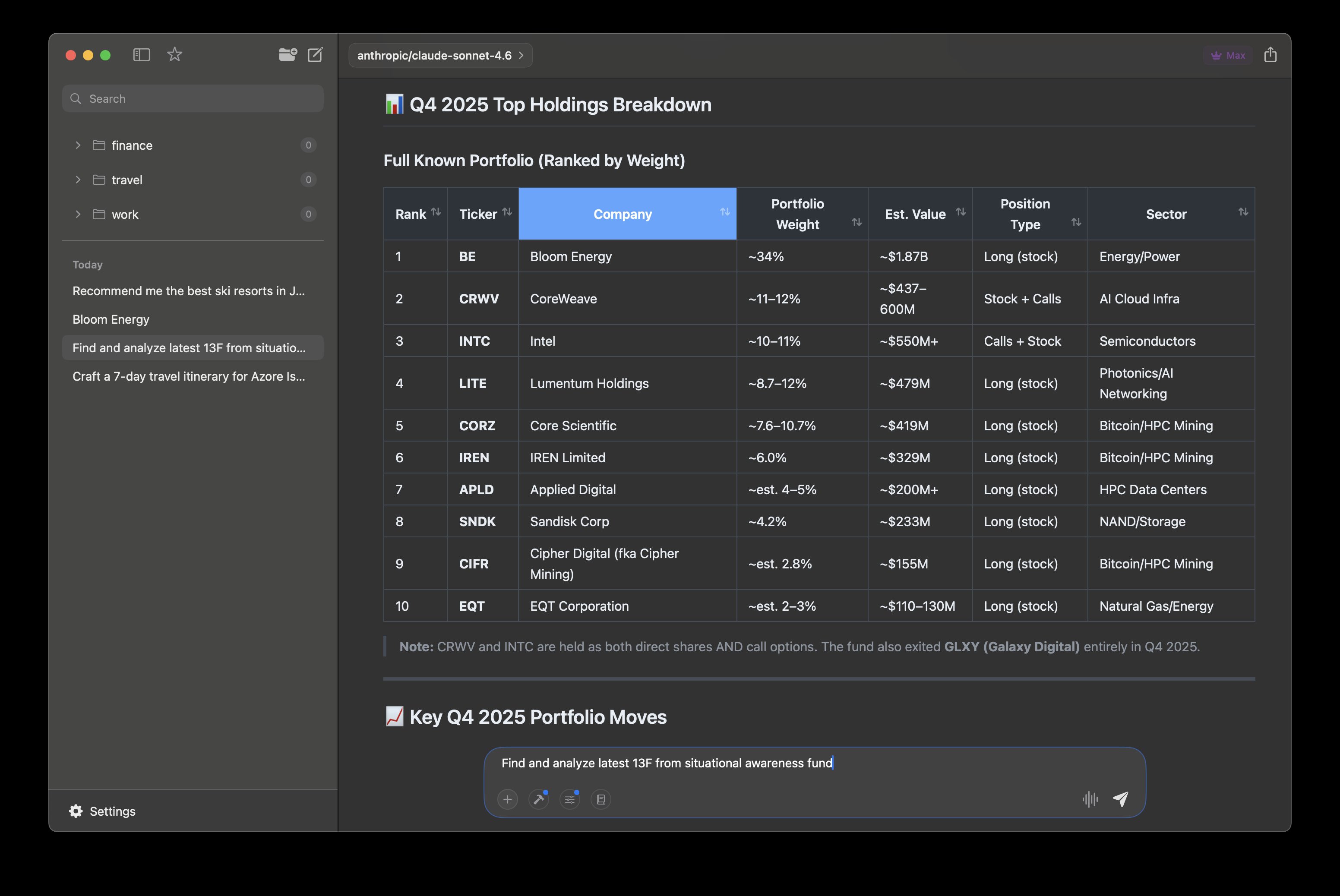
Research the current options for [topic]. Search broadly first, then open the most relevant pages and read them fully. Compare at least five sources, note where they disagree, and finish with a sortable table and a short recommendation. Cite every claim with its source link.
Because Elvean renders tables you can sort, charts and maps inside the reply, the result arrives as something you can work with rather than a wall of text — and you can export it to Markdown, HTML or PDF.
Checking its work
Deep research is only useful if you can trust it, so Elvean doesn’t hide what happened. Open the tool calls section of a response and you’ll see every search query the model wrote, which pages it opened, and what each tool returned. If an answer looks off, that’s the first place to look: a vague answer usually traces back to a search that only returned snippets, or a page the model never opened.
What stays on your Mac
Web search is the one tool that has to leave your machine — the query goes to the search provider you chose, and only when search is switched on. Everything else stays where it was: your conversations are stored on your Mac, your keys live in the macOS Keychain, and if you pair search with a local model, the reasoning about what to search and how to answer happens on your Mac too.
Try it
Web search is part of Elvean Pro, with a 7-day free trial. If there’s a search provider you’d like to see supported, or a research workflow you’d like us to write up, tell us in the Elvean Discord.
Try this workflow yourself — download Elvean for Mac.