How to Set Up Ollama with Elvean on Mac
Ollama is the easiest way to run open-source AI models locally on your Mac. Combined with Elvean’s native Mac interface, you get a private, offline AI workspace with no subscriptions, no API keys, and no data leaving your machine.
This guide walks through setup in about 5 minutes.
Why Ollama + Elvean?
Ollama handles the hard part: downloading models, managing inference, and exposing a local API. But Ollama itself is a command-line tool, and most third-party GUIs are Electron-based web wrappers that feel out of place on macOS.
Elvean is a native SwiftUI Mac app built specifically as an Ollama frontend (among others). You get:
- Zero config. Elvean auto-detects your local Ollama instance.
- Native performance. Launches in under a second, minimal memory footprint.
- Rich responses. Interactive charts, sortable tables, maps, and photo galleries rendered inline.
- Threaded conversations. Branch without losing context.
- Metal-accelerated inference. Optimized for Apple Silicon.
Everything runs locally. Nothing is sent to any server.
Step 1: Install Ollama
Download Ollama from ollama.com/download and drag it to your Applications folder.
Once launched, Ollama runs in your menu bar and exposes a local API at http://localhost:11434.
To verify it’s running, open Terminal and run:
ollama --versionIf you see a version number, you’re good.
Step 2: Download a Model
Ollama supports hundreds of open-source models. For most users, we recommend starting with one of these:
| Model | Size | RAM Required | Best For |
|---|---|---|---|
llama3.2 | 2 GB | 8 GB | General chat, fast responses |
llama3.1:8b | 4.7 GB | 16 GB | Better quality, still fast |
qwen2.5:14b | 9 GB | 32 GB | Coding, reasoning |
llama3.1:70b | 40 GB | 64 GB+ | Best quality (slow on most Macs) |
For a 16 GB M-series Mac, llama3.1:8b is the sweet spot.
Download a model by running:
ollama pull llama3.1:8bThe download takes a few minutes depending on your connection. You only need to do this once per model.
Step 3: Connect Elvean
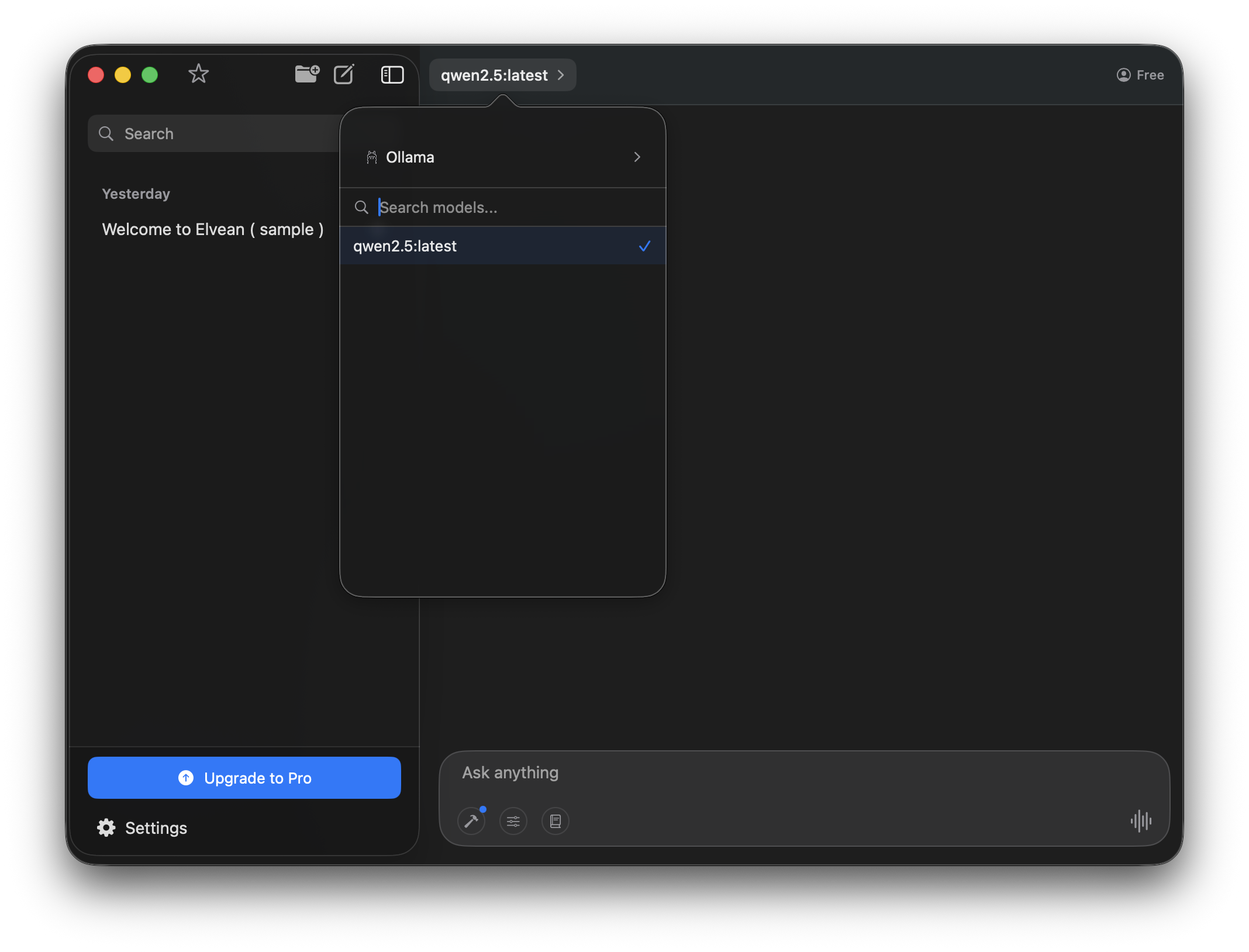
Open Elvean. It automatically detects any running Ollama instance and adds your downloaded models to the model picker.
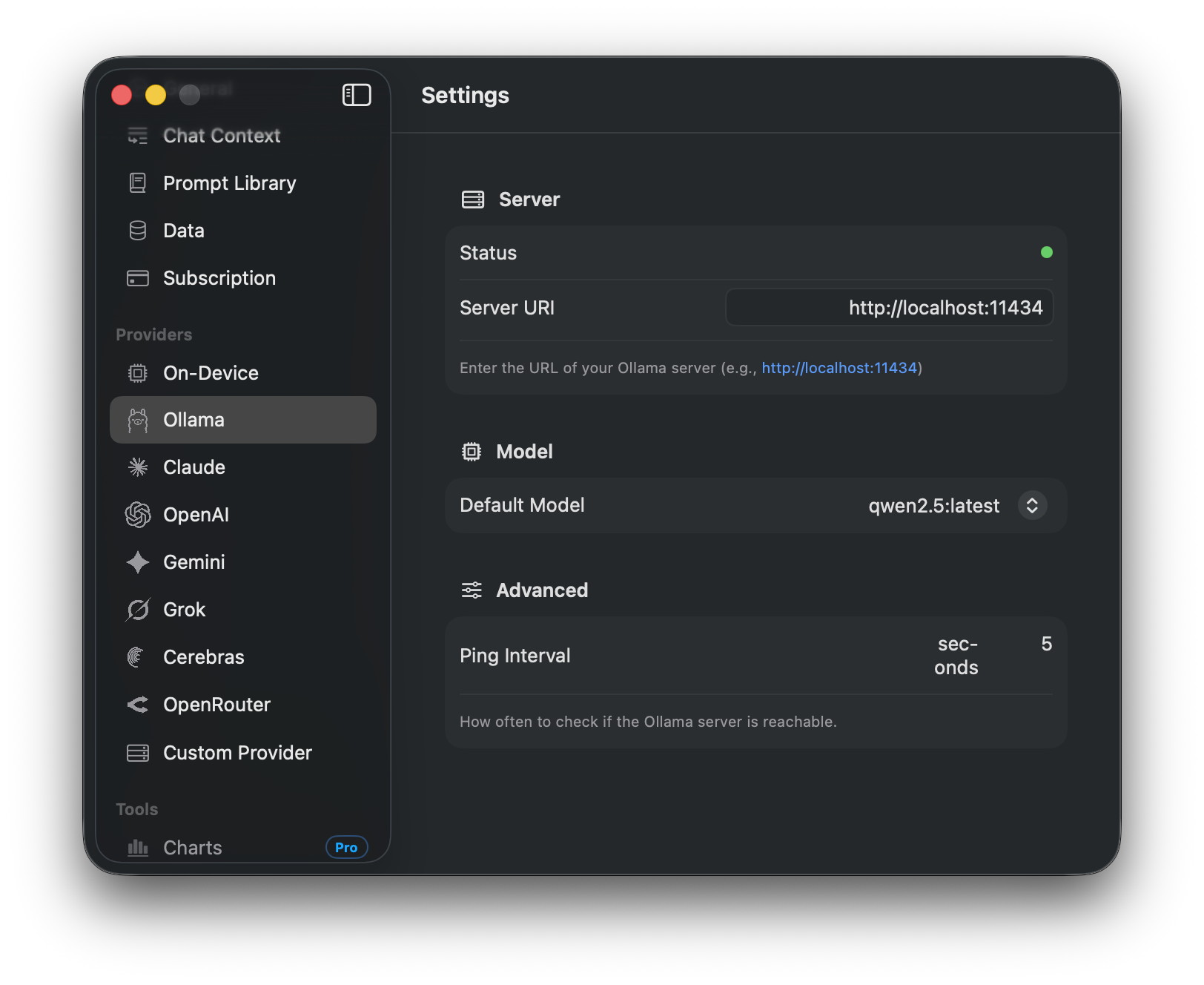
If Elvean doesn’t detect Ollama, open Settings (⌘,) → Ollama and verify the Server URI is http://localhost:11434. The status dot should be green when Ollama is reachable.
Step 4: Start Chatting
Select your Ollama model from the model picker at the top of the conversation and start typing. Responses stream in real time, and you can switch between Ollama and any cloud model mid-conversation using @ mentions.
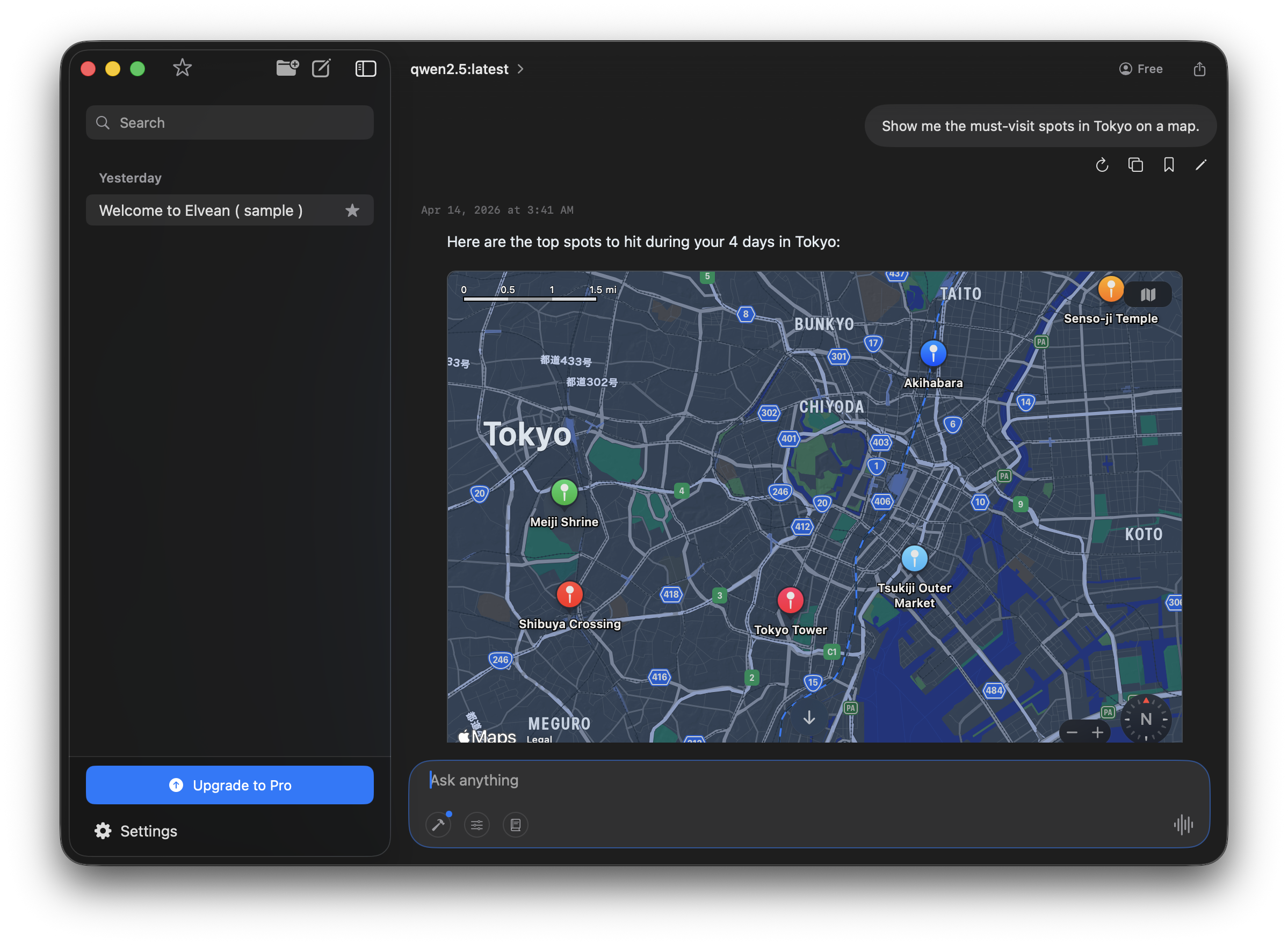
Local models in Elvean get the same rich rendering as cloud models: interactive maps, charts, sortable tables, and photo galleries all work offline.
Which Model Should I Use?
Rough guidance:
- Casual chat, summaries, quick questions →
llama3.2(fastest) - Longer writing, analysis →
llama3.1:8b(balanced) - Coding assistance →
qwen2.5-coder:7borqwen2.5:14b - Large-context tasks →
llama3.1:8bsupports 128K context - Vision (images) →
llava:7borllama3.2-vision
You can download as many models as fit on your disk and switch between them in Elvean instantly.
Tips for Faster Performance
- Use quantized models (the default
:8b,:14b, etc. tags are already quantized for Mac) - Close background apps. Inference speed is heavily RAM-dependent.
- Use an M-series Mac. Elvean requires Apple Silicon, and Ollama on Intel hardware is 3-5x slower.
- Reduce context length for faster responses on long conversations
Troubleshooting
Models aren’t showing up in Elvean Check that Ollama is running (look for the llama icon in your menu bar). Restart Elvean or click Refresh in Settings → Providers → Ollama.
Responses are very slow
Your model is likely too large for your RAM. Try a smaller model (llama3.2 uses ~2 GB). Activity Monitor will show if you’re hitting swap.
“Failed to connect to Ollama” Make sure Ollama is running on the default port (11434). If you’ve changed it, update the endpoint in Elvean Settings → Providers → Ollama.
Model download fails Check disk space and try again. Models are large, so make sure you have at least 2-3x the model size free.
Next Steps
- Combine local Ollama models with cloud models (Claude, GPT, Gemini) in one conversation using @mentions
- Explore MCP servers to give local models tool access
- Read about quantization to understand model sizes